Genealogy research: zooming into old photos and scanned documents
Family history research is a profession of squinting. Between 1850 census pages written in looping cursive, water-stained 1880s immigration manifests, and faded portraits where someone’s face is a quarter-inch across, genealogists spend most of their time trying to see things clearly.
Hover-to-zoom doesn’t solve every archival problem, but it does remove a huge amount of friction from the day-to-day work. Here’s how researchers use it on the sites that matter most.
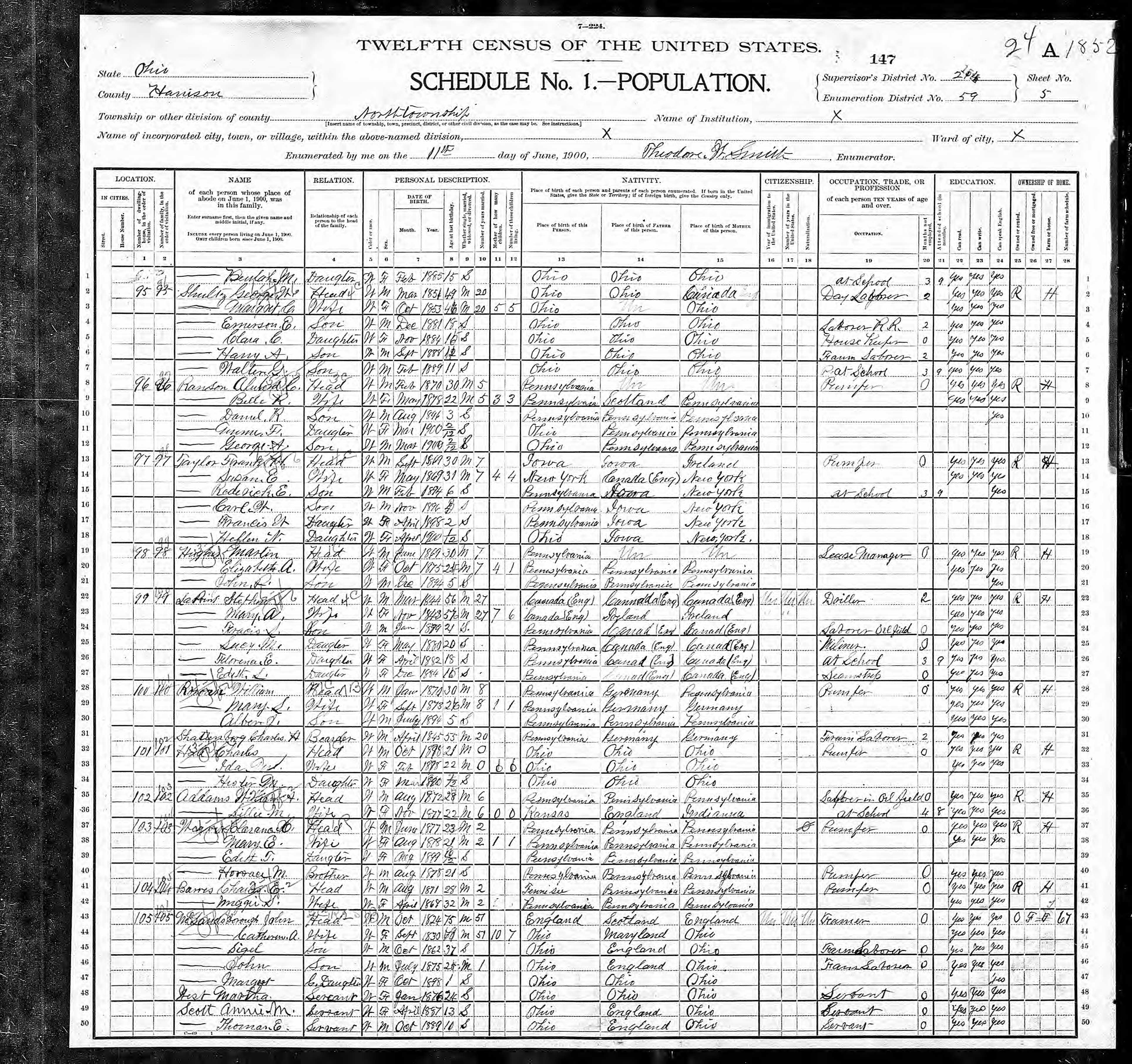
The archive viewer problem
Most big genealogy platforms (Ancestry, FamilySearch, MyHeritage, Findmypast, Newspapers.com) have built their own image viewers. Those viewers usually work, but they’re built for one record at a time. You open the viewer, you pan and zoom, you close it, you move to the next result. For a researcher working through a forty-record search result, that’s a lot of clicks.
Hover-to-zoom works differently. You hover the result thumbnail and see the full image immediately, right over the search list. Scroll to zoom further. Move away, it disappears. It’s especially useful for:
- Triage: deciding which of forty search hits is actually the record you want, without opening each viewer
- Cross-referencing: bouncing between a census page and a map or photograph without losing your place
- Fast scans of thumbnail galleries: newspaper front pages, cemetery photo sets, passenger manifest indexes
Reading old handwriting
Nineteenth-century clerks wrote in a hand that’s consistently readable if you know the conventions, but the real challenge is usually image quality. The record was photographed once, often decades ago, and everything after that is just compression on compression.
What hover-zoom helps with:
Letter-by-letter comparison. When one name on a census is clear and the name you’re trying to read is ambiguous, zoom lets you compare the letterforms side by side. Clerks were usually consistent within a single page even when their handwriting is otherwise hard to parse.
Distinguishing similar letters. The classic pairs: capital T and F, lowercase s (long and short), n and u, r and v. At thumbnail size these are indistinguishable. At full zoom you can usually see which one the clerk wrote.
Strikethroughs and corrections. Scribbled-out entries, carets, and marginal notes are often where the interesting story lives. They’re nearly invisible in the thumbnail.
Page damage and bleed-through. Ink from the back of the page shows up under zoom. Recognizing bleed-through vs. a real mark on the front keeps you from mis-transcribing entries.
Clues in old photographs
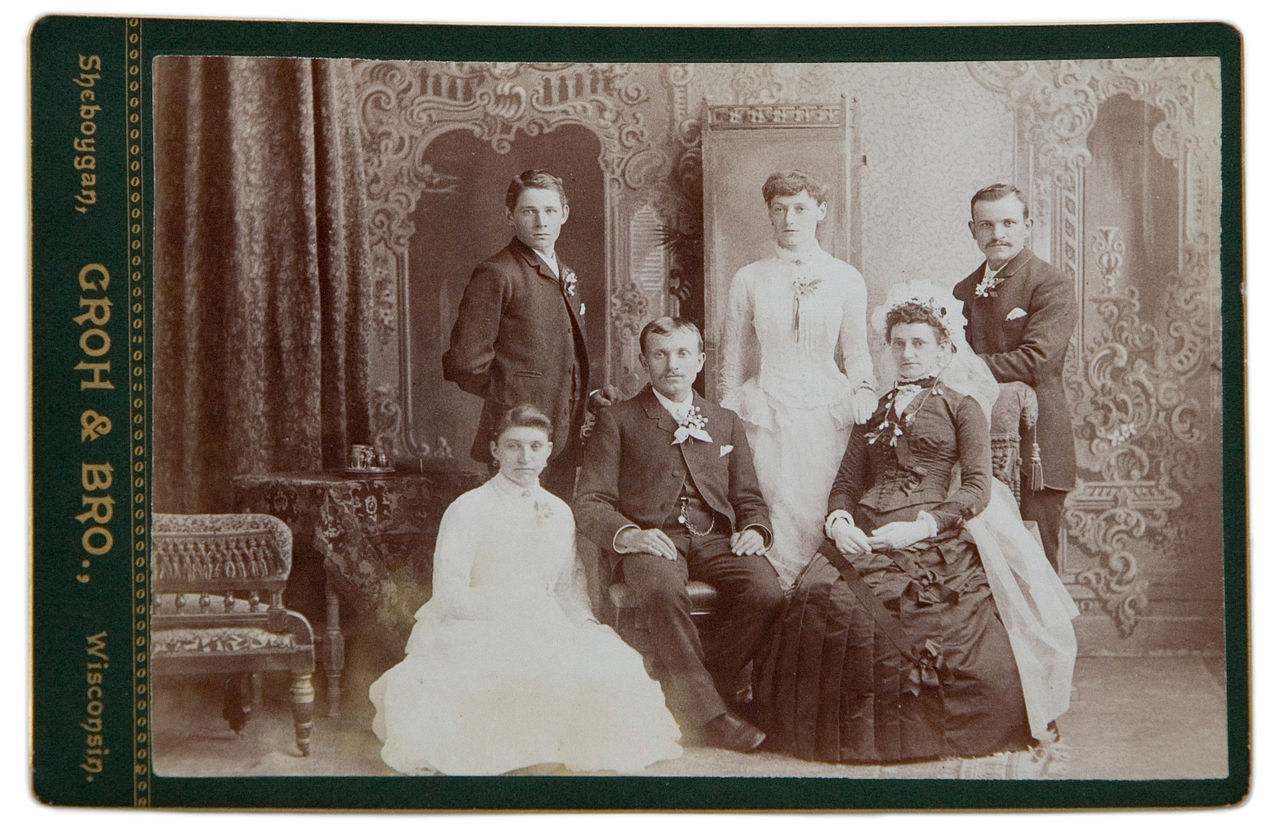
Photographs are where zoom earns its keep. A typical old family portrait carries more information than you’d think:
Photographer’s mark. The studio name and city are usually printed on the mount or stamped on the back. At full zoom you can often read them even in a scanned thumbnail. That tells you where the photo was taken and often narrows the date range.
Clothing and hairstyle detail. Lace patterns, button styles, collar shapes, and hairdo details are dated with surprising precision by costume historians. Zoom lets you see them clearly enough to compare against period references.
Jewelry and accessories. Pocket watches, brooches, rings, military insignia, and fraternal pins all carry identifying details. Zoom sometimes reveals an engraved monogram that cracks a mystery photo open.
Background details. What’s on the wall behind the subject? Is that a wedding portrait, a calendar, a religious image, a specific piece of furniture? These clues often help date or locate a photograph.
Expressions and identification. When a group photo has three people and you only know two, zoom may show a family resemblance that points to the third.
Platform-by-platform notes
Ancestry.com. Hover-zoom works on search result thumbnails, record hints, and photo gallery previews. Particularly useful when you’re working through a long hint queue.
FamilySearch. The catalog browse pages show small image previews of scanned books and microfilm. Hover-zoom lets you check the page you’re looking for without opening the full film viewer.
Newspapers.com and Chronicling America. Newspaper search results show a thumbnail of the clipping with the match highlighted. Zoom lets you read the surrounding article at a glance to decide whether it’s your John Miller.
FindAGrave and BillionGraves. Cemetery photo pages have grid galleries of headstone photos. Zooming inscriptions is dramatically faster than opening each photo in its own page.
MyHeritage. DNA match result pages, photos of ancestors, and source documents all work with hover-zoom.
A few workflow tips
Combine hover-zoom with the platform’s own tools. Hover-zoom is for triage and quick reading. For detailed examination, annotation, or side-by-side comparison, keep using the platform’s built-in viewer. The two complement each other.
Work from a clean desktop. Family history research generates a lot of open tabs. Hover-zoom cuts the tab count because you rarely need to open a record just to glance at it.
Don’t trust OCR. Platform OCR is trained for printed text and often fails on handwriting. If an automated transcription says something unexpected, zoom the original. The OCR is wrong at least as often as the clerk was.
Why this matters for privacy-minded researchers
Family history research touches sensitive information: living relatives, health conditions, adoptions, military service records. The last thing a researcher wants is a browser extension logging which records they’re viewing.
Ultra Zoom is built so that it can’t. The extension doesn’t collect or transmit which images you hover. It doesn’t have an analytics endpoint. The network traffic is limited to the image fetches themselves, direct to the archive’s own server, which is exactly what your browser would do without the extension installed.
If that part matters to you (and for genealogy work, it really should), our zero-knowledge architecture post walks through the technical details.
Grab Ultra Zoom for Chrome or Firefox and give your next research session a try. Deep in a multi-generation project? Pro unlocks EXIF viewer and batch download for archive work.