The designer's hover-zoom workflow: faster moodboards on Pinterest, Behance, and Dribbble
Designers look at a lot of images. A week of moodboarding for one project can mean scrolling past thousands of references on Pinterest, Behance, Dribbble, Are.na, and a dozen niche archives. The bottleneck almost always turns out to be the same thing: thumbnails are too small to tell good work from great work, and clicking through every interesting piece fragments your attention.
Hover-to-zoom solves the bottleneck directly. Here’s how working designers use it.
Why thumbnails fail for design work
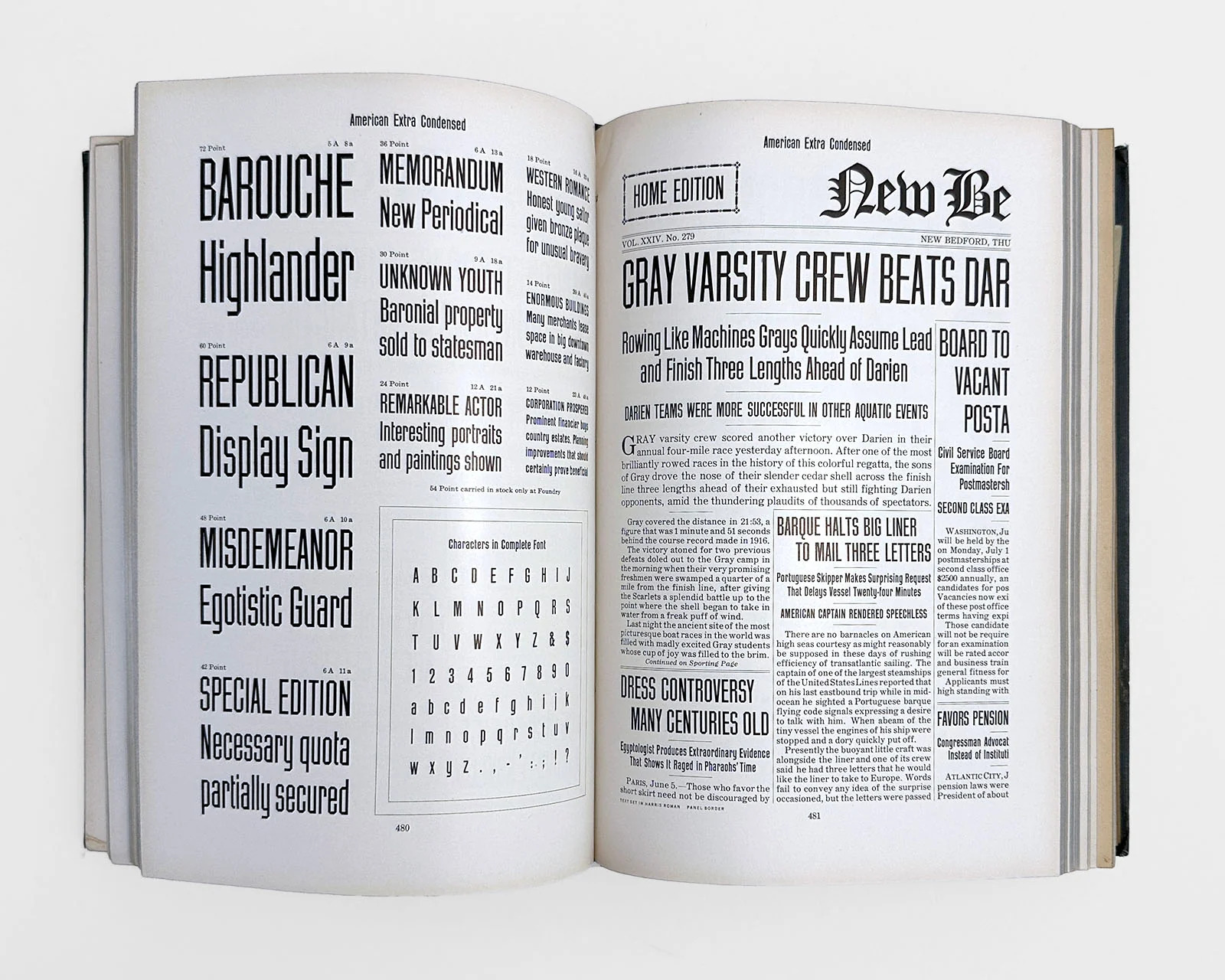
Design judgment happens at detail level. Kerning, hinting, texture, color gradient smoothness, edge quality, halftone pattern, stroke weight consistency: none of these are visible in a 300-pixel gallery thumbnail. You need to see the work at something close to its actual resolution to decide whether it belongs on the board.
The traditional workaround is the open-in-new-tab shuffle: middle-click every interesting thumbnail, let twenty tabs pile up, then work through them one by one. This works, but it’s draining. You lose the flow of scanning, and by the time you’re halfway through the tabs you can’t remember why you opened half of them.
Hover-to-zoom keeps you in the gallery. You scan. Something catches your eye. You hover. The full-resolution image pops up over the grid. If it’s still interesting, you save or pin it. If not, you move on without breaking stride.
What you actually see at full zoom
Typography. Hover-zoom lets you read type specimen thumbnails properly. You can tell whether that display face has the tight, modern counters you wanted or the slightly looser feel that’ll make it look dated. Rendering, hinting, and kerning at real size are usually enough to make the decision.
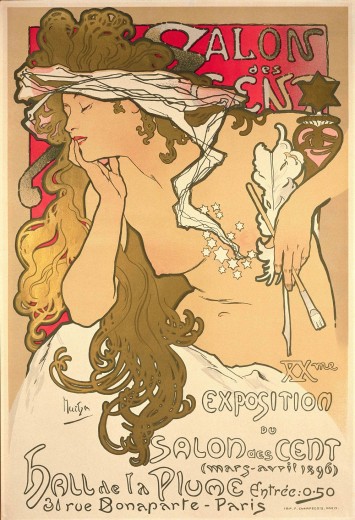
Illustration technique. Brush texture, grain, pencil line weight, and watercolor bleed only exist at full size. At thumbnail scale every illustration looks smooth, but zoom reveals whether the artist works in loose analog, clean vector, or somewhere in between.
Photography detail. Photo composition reads at thumbnail size, but grain, depth-of-field falloff, and color grading don’t. Zoom is how you tell whether a photographer’s work will hold up next to yours on a shared spread.
Design system coherence. On Behance case studies and portfolio sites, zoom lets you see whether a designer kept the type, color, and grid consistent across screens. A sloppy system is obvious at full size and invisible at thumbnail size.
Print finishes and materials. Foil, emboss, deckled edges, paper texture: none of this reads on a compressed JPEG thumbnail. On a 2400-pixel portfolio image, hover-zoom often shows you the grain of uncoated stock.
Platform-by-platform workflow
Pinterest. Moodboarding’s home base. Hover-zoom makes the feed dramatically more usable. You can scan a search result or a trending topic and actually evaluate what you’re seeing. Arrow keys walk through individual pins without breaking the overlay, so you can triage a long board in one pass.
Behance. Project case studies are built for full-screen viewing, but the project grid is where you decide what’s worth opening. Hover-zoom lets you peek inside a project from the grid view without committing to the case study.
Dribbble. Shot galleries work especially well with hover-zoom because Dribbble encourages tight, detail-rich crops. You can scan a search or tag page and see exactly which shots have craft-level detail worth studying.
Are.na. Research blocks on Are.na often link to images at mixed resolutions. Hover-zoom shows you what’s actually there before you click through to the source.
Artstation. Concept art and 3D renders reward close inspection. Zoom is how you check brush economy, topology hints, and lighting technique without opening every artist’s page.
Tumblr and Cara. Art-focused social feeds that compress aggressively for feed display. Hover-zoom pulls the full-resolution upload for any image your eye lands on.
A board-building workflow
Here’s the workflow a few art directors we know have converged on:
- Set a tight brief before you start. Know the feeling, palette, and references you’re hunting. Moodboarding without a brief turns into aimless scrolling.
- Scan galleries with hover-zoom. Don’t open anything yet. Just look, hover, and move on. Your goal on the first pass is to mark which references cleared the visual-craft bar, not to commit to them.
- Save in batches, not one-by-one. When you find a stretch of strong work (a particular artist, a particular search term), save ten or twenty in a row. That’s faster than alternating between saving and scanning.
- Do a second pass with zoom before you present. Before you share the board, hover each reference at full resolution one more time. Anything that looked promising in the grid but falls apart at full size gets cut.
That second pass is what separates a decent board from one that’ll hold up in a client meeting. It takes five minutes with hover-zoom and it’s nearly impossible to do without.
On privacy: quietly important for agency work
A designer working on an unannounced rebrand or a confidential campaign probably doesn’t want a browser extension logging which references they’re pulling. The Hover Zoom scandal of the early 2010s wasn’t just a personal-privacy problem. It was a professional-security one. A brand team’s research trail is competitive information.
Ultra Zoom doesn’t collect it. The extension has no analytics, no telemetry, and no server that could receive your browsing history. Our zero-knowledge architecture post walks through exactly what goes over the network and what doesn’t.
Grab Ultra Zoom for Chrome or Firefox and load up a Pinterest board. Gallery navigation and the colour palette are free; for caption overlays while you scan, palette export, and side-by-side compare, upgrade to Pro.